
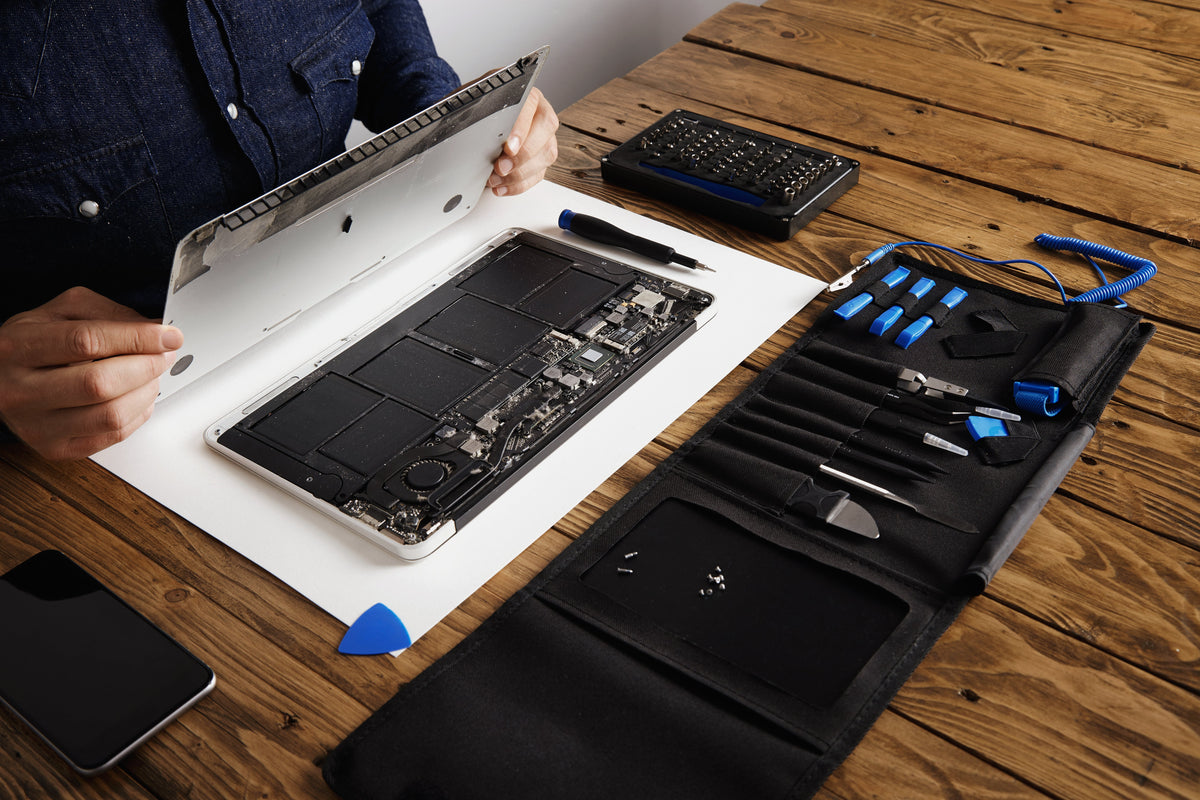
A cracked laptop or all-in-one (AIO) screen doesn’t automatically mean you need a new computer. If the rest of your device still meets your needs, replacing the damaged screen can be a practical way to keep it working without replacing the entire machine.
Repair or replace? The quick answer: Consider repair when the screen is the main problem and the computer still meets your needs. Consider replacement when several costly faults or outdated capabilities make the complete repair hard to justify. Diagnose first, then compare the total costs.
1. Check what’s actually wrong
Visible cracks and ink-like patches can indicate a damaged display panel. Flickering, lines, or a black screen can also involve the display cable, graphics hardware, or other components. Symptoms alone are not enough to confirm which part needs replacing.
If your computer supports an external monitor, testing one can help narrow down the issue. A normal external picture may point toward the built-in display or its connection, but it does not prove the panel itself is faulty.
If the cause is unclear, get a diagnosis before ordering parts. Avoid pressing on damaged glass or repeatedly moving a damaged hinge.
2. Compare repair with replacement
Start with an estimate that includes the correct screen, labor if needed, shipping, and any additional damage. Compare that total with the cost of a suitable replacement computer. There is no single price cutoff that works for every device.
| Your situation | What to check | How to decide |
|---|---|---|
| Reliable laptop, cracked screen | Display panel, hinges, and housing, especially after a drop. | Price a compatible screen repair first if the computer otherwise meets your needs. |
| Older computer, several faults | Battery, charging connection, performance, and software support. | Compare all necessary repairs with replacement, not just the screen cost. |
| Touchscreen laptop or AIO | Whether the job needs a bare panel, bonded glass digitizer, or a complete assembly. | Get a model-specific estimate before buying parts or attempting the repair. |
What else makes repair worthwhile?
Repairing an otherwise useful computer lets you keep your familiar applications, settings, and workflow. It can avoid the work of moving everything to a new device and keep functioning components in use for longer.
That can also help reduce electronic waste. Recycle the damaged screen through an appropriate electronics recycling service. Back up important files before any repair, even when the work is limited to the display.

3. Match the screen before ordering
Screen compatibility involves more than display size or connector pin count. Resolution, connector type and location, mounting points, touch capability, and the device’s supported display configuration can all matter.
A higher-resolution panel or touch screen is not automatically a compatible upgrade. Choose the specifications your computer supports rather than assuming a similar-looking panel will work.
For a closer look at what to check, read Laptop Screen Compatibility: Why Pin Count Alone Isn’t Enough.
Explore our LCD replacement screens and OLED replacement screens once you know what your device needs. LCD and OLED are not interchangeable simply because the screens are the same size.
Your screen-match checklist
- Identify the device: Find the full model, including any model suffix or product number.
- Document the issue: Photograph the damage and describe when it started.
- Note what still works: Does the computer start? Does touch work, if equipped? What happened during an external-monitor test?
- Share the part number if available: Provide the original screen part number if you already have it. Do not open the device just to find it if you are unsure how to do so safely.
- Confirm before committing: Back up files and request a compatibility check or complete repair estimate before ordering or shipping.
4. Choose DIY or mail-in repair
DIY: assess the job before opening the device
A DIY repair may suit someone with the right experience, tools, and model-specific instructions. Some displays use adhesive, delicate connectors, or integrated assemblies, so a repair video for a similar model may not cover your configuration.
Power the device down, unplug it, and follow the manufacturer’s safety and battery-disconnection instructions. If you are unsure, use a qualified repair professional.
Mail-in repair: discuss the details first
If you prefer help, describe your device and screen issue through our Mail-In Repair page. Confirm the repair scope and shipping arrangements before sending anything in. This is especially useful when you are unsure which assembly is needed or whether the fault is limited to the display.
Frequently asked questions
Will replacing the screen erase my files?
A screen replacement normally does not require erasing storage. Still, back up your files beforehand and discuss any data-related work with the repair provider. A display repair is not a substitute for a backup.
Can I upgrade the resolution or add touch?
Not necessarily. The computer’s hardware, cable, firmware, and display assembly must support the change. Confirm the exact configuration before buying; matching size and pin count alone is not enough.
What if I don’t know my screen part number?
Start with your full device model and contact us for free screen-matching help. Some models ship with different displays, so additional details may be needed before a match can be confirmed.
Need help choosing your next step?
If your laptop or AIO still does what you need and the damage is limited to the screen, repair is worth considering. Confirm the diagnosis, match the screen, and compare the complete costs.
Get a free screen match: Email your full device model or original LCD part number to info@lcdguarantee.com. Prefer help with the repair itself? Ask about mail-in repair before sending your device.